

Hello All!
I’m Nicole, AI Data Analyst | Ohata Shoji America Seattle Yard.
Today is Friday, September 25, 2026. Seattle is easing into cooler weather, and honestly, autumn feels like the intended lighting for this city. Gray skies, darker evenings, coffee shops, folk music... we are not beating the hipster allegations anytime soon.
Tomorrow evening, the Seattle Folklore Society is hosting the Hayden Stern Band at the Phinney Center Concert Hall. The album-release show runs from 7:30 to 10:00 p.m. and includes new compositions, traditional tunes, fiddle, viola, and guitar, with Vienna Scheyer opening. Advance tickets are available online, and tickets may also be sold at the door if space remains.
Anyway, back to old computers. Today I want to explain what a BIOS or firmware lock actually does, what it does not change inside the computer, and why a locked PC may still qualify as e-scrap.
What a BIOS Lock Means
Before Windows or another operating system loads, a PC runs firmware built into the motherboard.
Older systems commonly call this the BIOS, or Basic Input/Output System. Most newer PCs use UEFI, or Unified Extensible Firmware Interface, although BIOS is still commonly used as the general term.
This firmware handles basic startup tasks such as:
Detecting the CPU and RAM
Finding attached storage devices
Selecting a boot device
Controlling certain hardware settings
Managing some security features
A password can be added at this level.
Lock type
What it can control
BIOS or UEFI administrator password
Access to firmware settings
Power-on or system password
Whether the computer can continue starting
HDD or SSD password
Access to a specific storage device
Windows or other account password
Access to the operating-system account
A password prompt before Windows appears does not automatically mean the storage drive itself is locked.
Learn more on YouTube: Types of PC and Laptop Locks Explained BIOS, BitLocker, Windows, and More
Which Computers Can Have BIOS Locks?
BIOS and UEFI passwords are available on many types of computers, including laptops, desktop PCs, workstations, and business systems.
They are not limited to one manufacturer. Dell, HP, Lenovo, and other PC makers have offered firmware security features on various models.
Business computers often use them because an IT department may want to prevent changes to startup or security settings. Consumer PCs can support them as well.
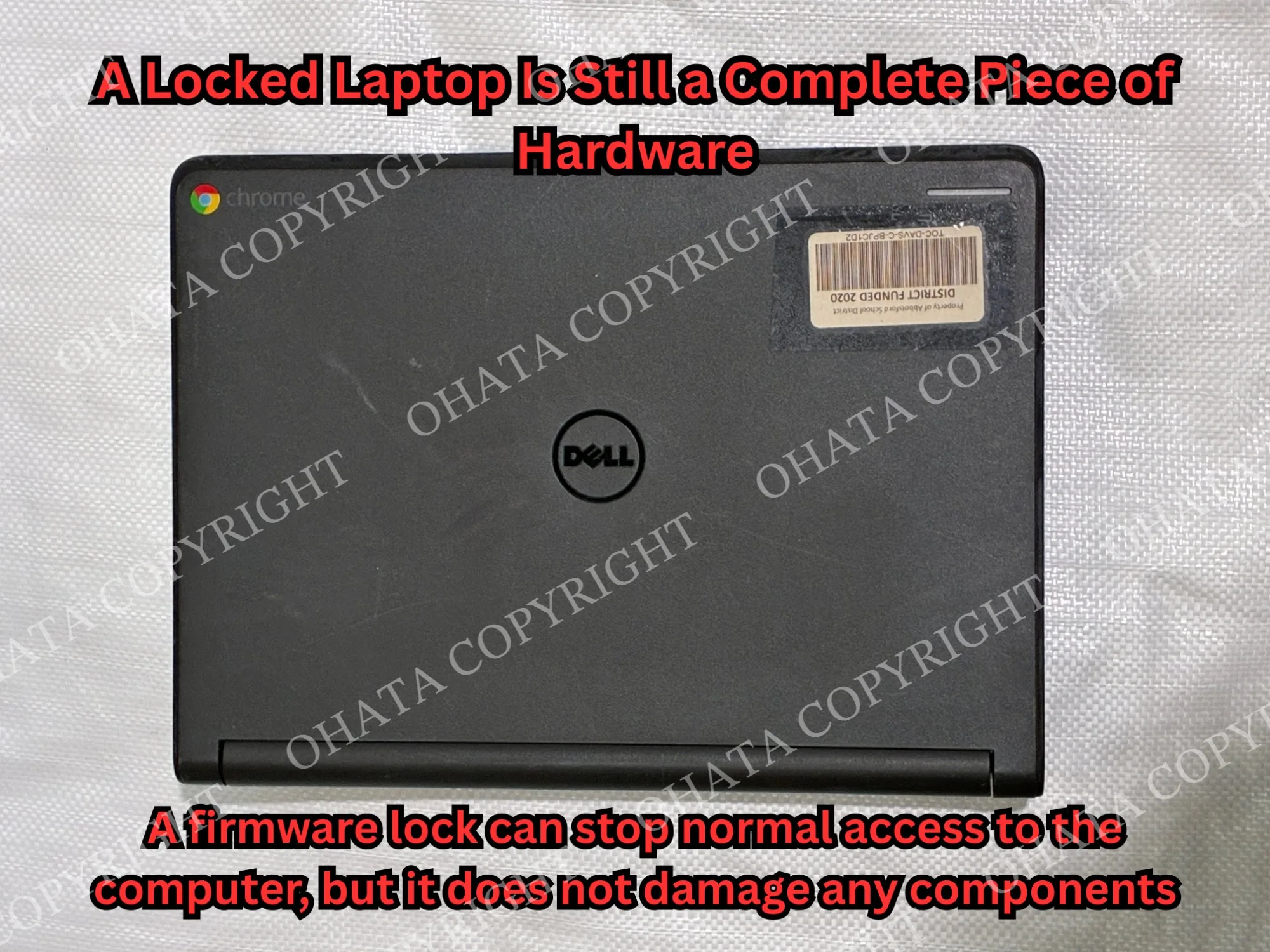
The presence of a BIOS password therefore says very little about the computer’s physical condition. A locked PC may still have a perfectly usable motherboard, CPU, RAM, storage, and display.
Can Macs Have a BIOS Lock?
Intel-based Macs can use an
Apple firmware password, which serves a similar purpose to a BIOS or UEFI password on a PC.
A firmware password can restrict startup from macOS Recovery or from storage devices other than the selected startup disk.
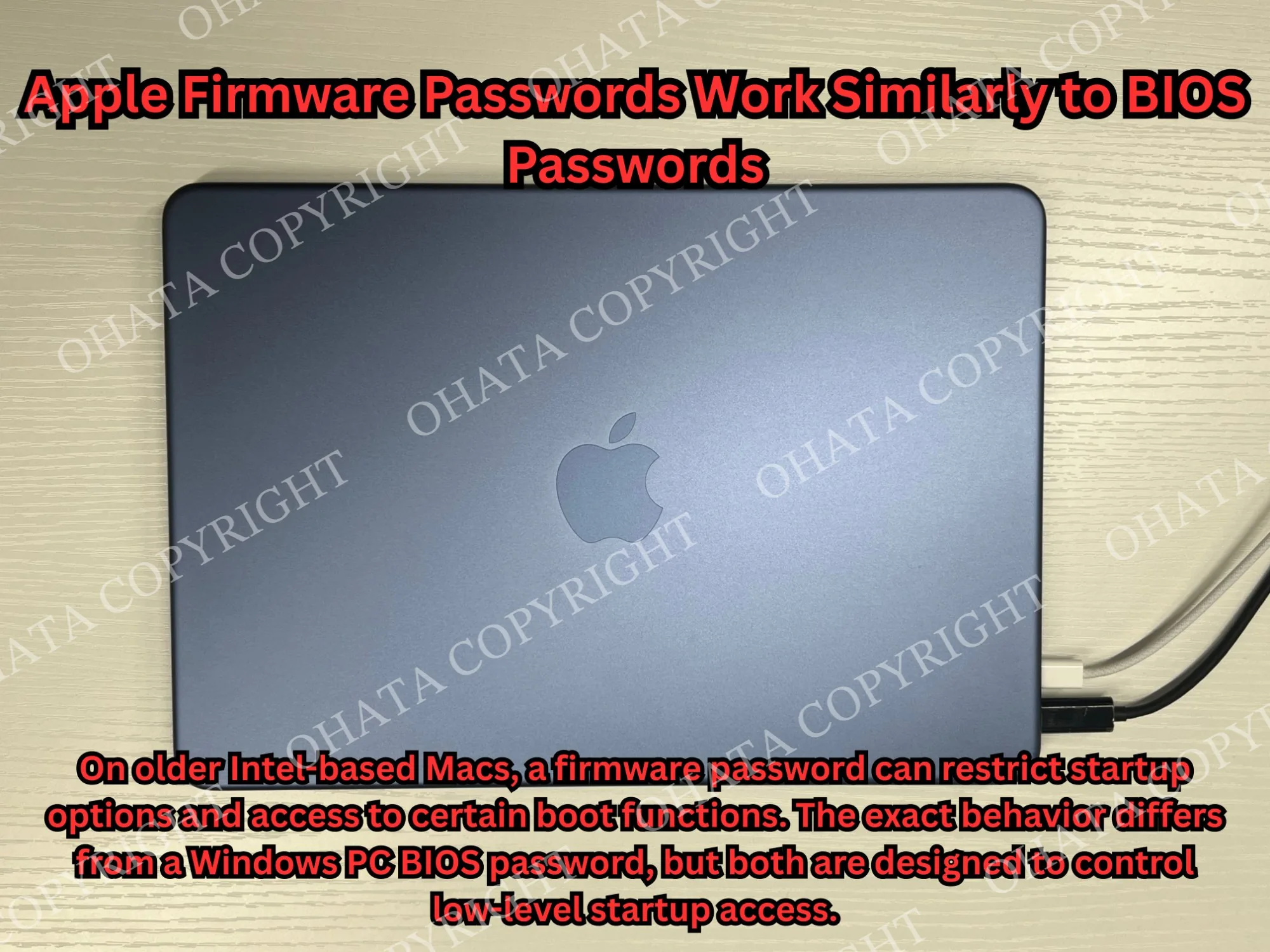
Apple silicon Macs with M-series processors use a newer startup-security system instead. A modern Mac that appears locked could involve:
A user account password
FileVault encryption
Activation Lock
Device management
Recovery security settings
Can You Remove a BIOS Lock and Keep Using the Computer?
Possibly. If you own the computer and want to continue using it, the best place to start is the manufacturer’s official recovery procedure. The available options depend on the brand, model, and type of password.
If you still know the password, many systems allow you to remove or change it through the BIOS or UEFI settings.
If you have forgotten it, the manufacturer may request information such as:
Model number
Service tag or serial number
Proof of ownership
Support or repair verification
Some older PCs have simpler reset procedures. Newer systems may store password information in protected memory specifically so it cannot be cleared easily.
Removing the CMOS battery should not be treated as a universal solution. It may reset some firmware settings on certain older computers, but many modern systems retain passwords after CMOS power is removed.
Does Replacing Parts Remove a BIOS Lock?
Realistically no, A BIOS or UEFI password is normally associated with the motherboard firmware, so replacing ordinary components leaves the lock in place.
Part replaced
BIOS lock normally removed?
RAM
No
HDD or SSD
No
Graphics card
No
CPU
No
Main battery
No
CMOS battery
Not reliably
Motherboard
The lock tied to the original board generally no longer applies
Replacing the motherboard is a much larger repair because the new board has its own firmware and configuration.
It can also introduce other issues involving operating-system activation, manufacturer configuration, device management, or hardware compatibility. On an older PC, replacing an entire motherboard simply to resolve a password may not make financial sense.
What Is Still Valuable Inside a Locked PC?
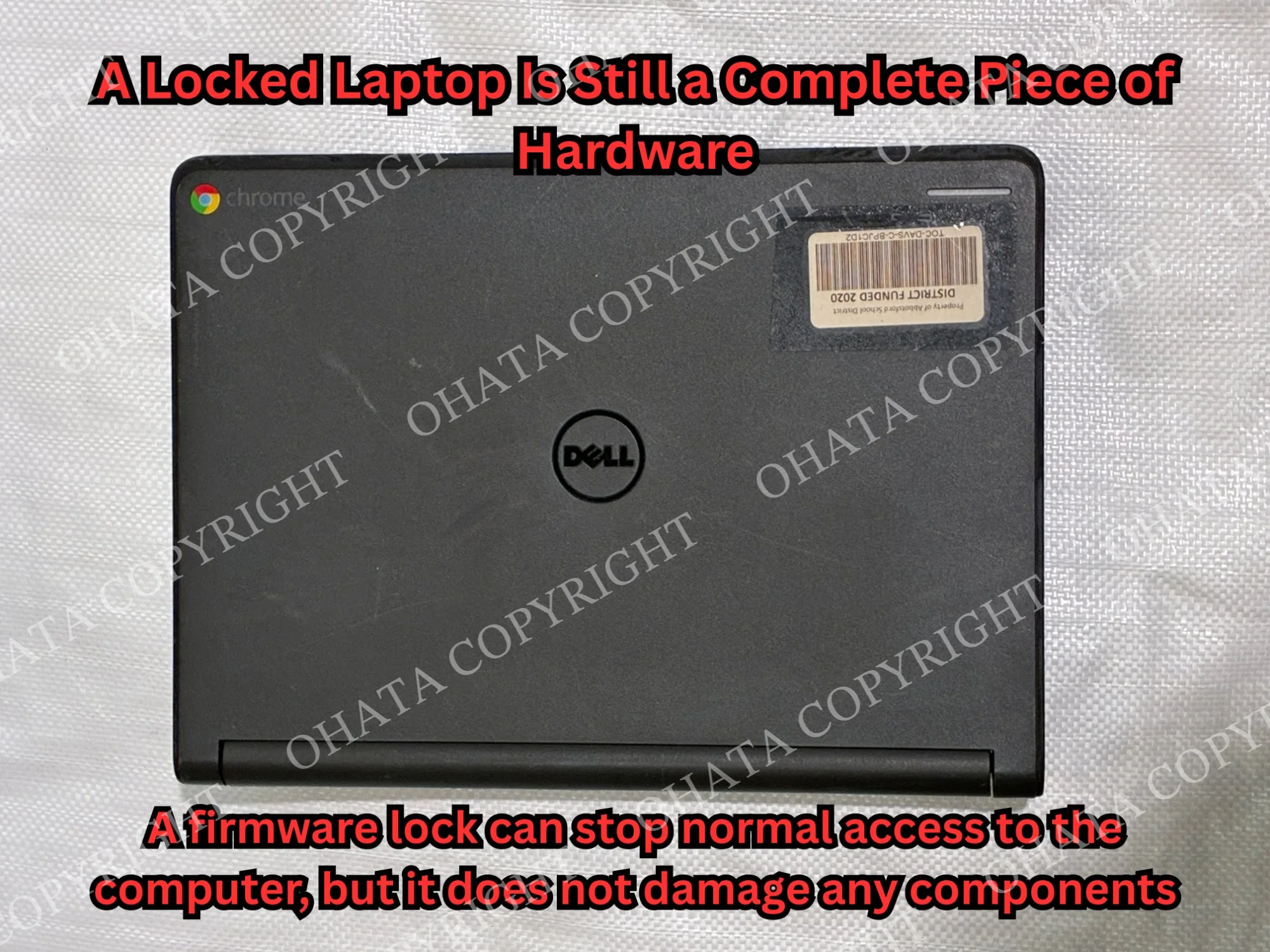
A firmware password does not physically change the components inside the computer. A qualifying Whole Laptop Non-Working, Good Screen, for example, does not need to boot normally. Physical completeness, screen condition, installed hardware, and overall condition are used to determine whether the item fits the category.
A locked desktop PC may still contain a motherboard, CPU, RAM, graphics or expansion cards, a power supply, HDD or SSD storage, heatsinks, fans, internal cables, and connectors. These parts remain physically present even if the computer cannot be accessed normally because of a firmware or BIOS password.
How a Locked Computer Is Evaluated as E-Scrap
The first step is identifying what the computer actually is. A laptop, desktop tower, workstation, small-form-factor PC, and all-in-one system with motherboard may be evaluated under separate buying categories.
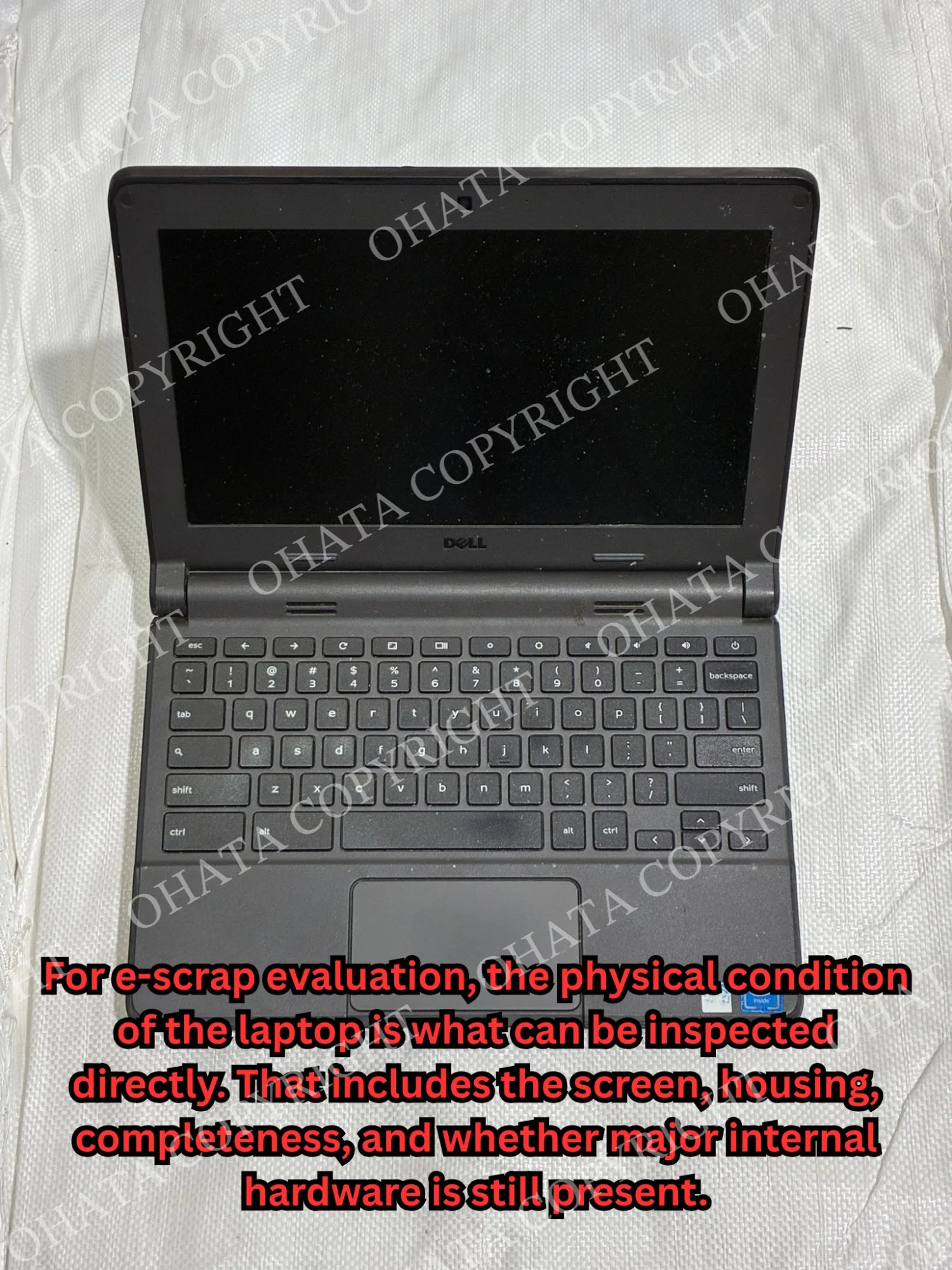
Completeness also affects the inspection. Useful details include:
Whether the motherboard is present
Whether the CPU and RAM remain installed
Whether storage has been removed
Missing expansion cards or other components
Broken or cut circuit boards
Corrosion or fire damage
Water or chemical contamination
Overall sorting condition
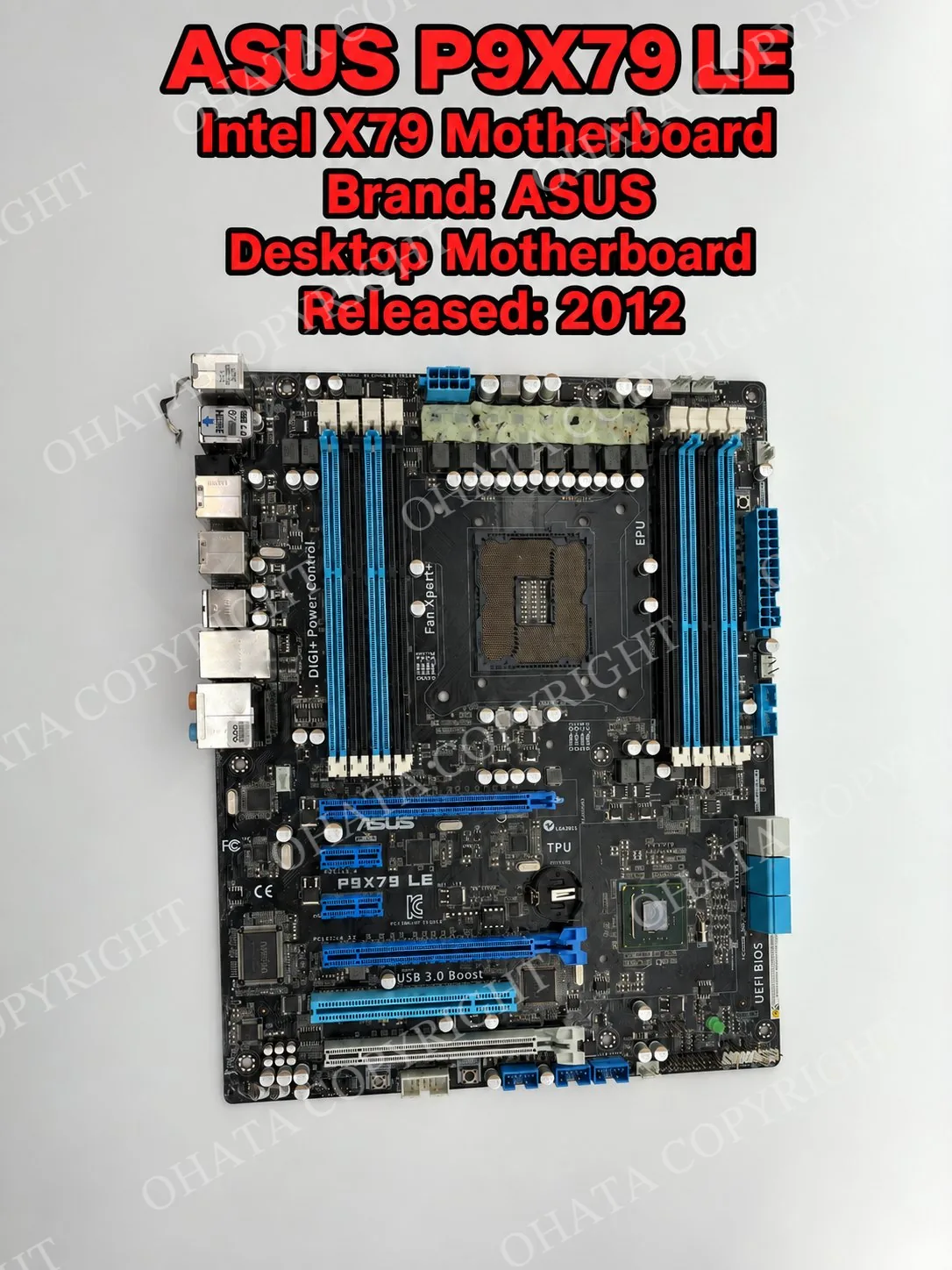
If a motherboard is sold separately, features such as the CPU socket, RAM slots, IC density, connectors, gold-plated contacts, and overall construction help determine the applicable grade.
A lower-grade consumer board may fit a category such as Board D Grade, but the actual board must meet the current requirements. A model name or BIOS lock does not establish the grade.
How Ohata.AI Vision Assists With Photo Identification
If you have already taken the computer apart, try Ohata.AI Vision for any loose circuit boards you are unsure about! Ohata AI Vision can analyze a photograph and suggest a possible item type or buying category. It may help determine whether an unfamiliar item resembles a computer motherboard, server board, telecom board, industrial board, or another type of circuit board.
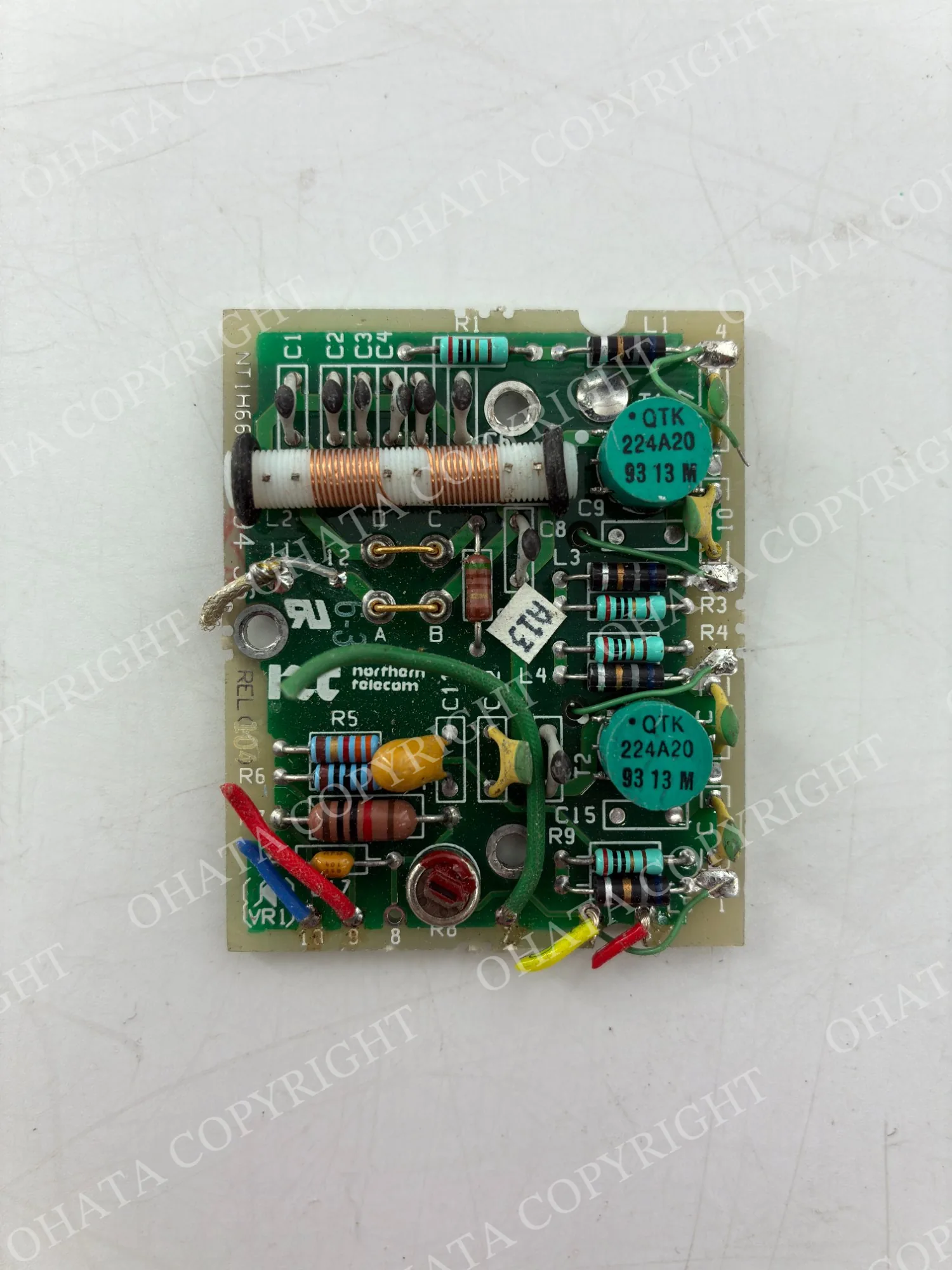
Clear photographs should show the full front and back without shadows or objects covering the components. Additional close-ups can show manufacturer markings, connectors, and areas where parts appear to be missing.
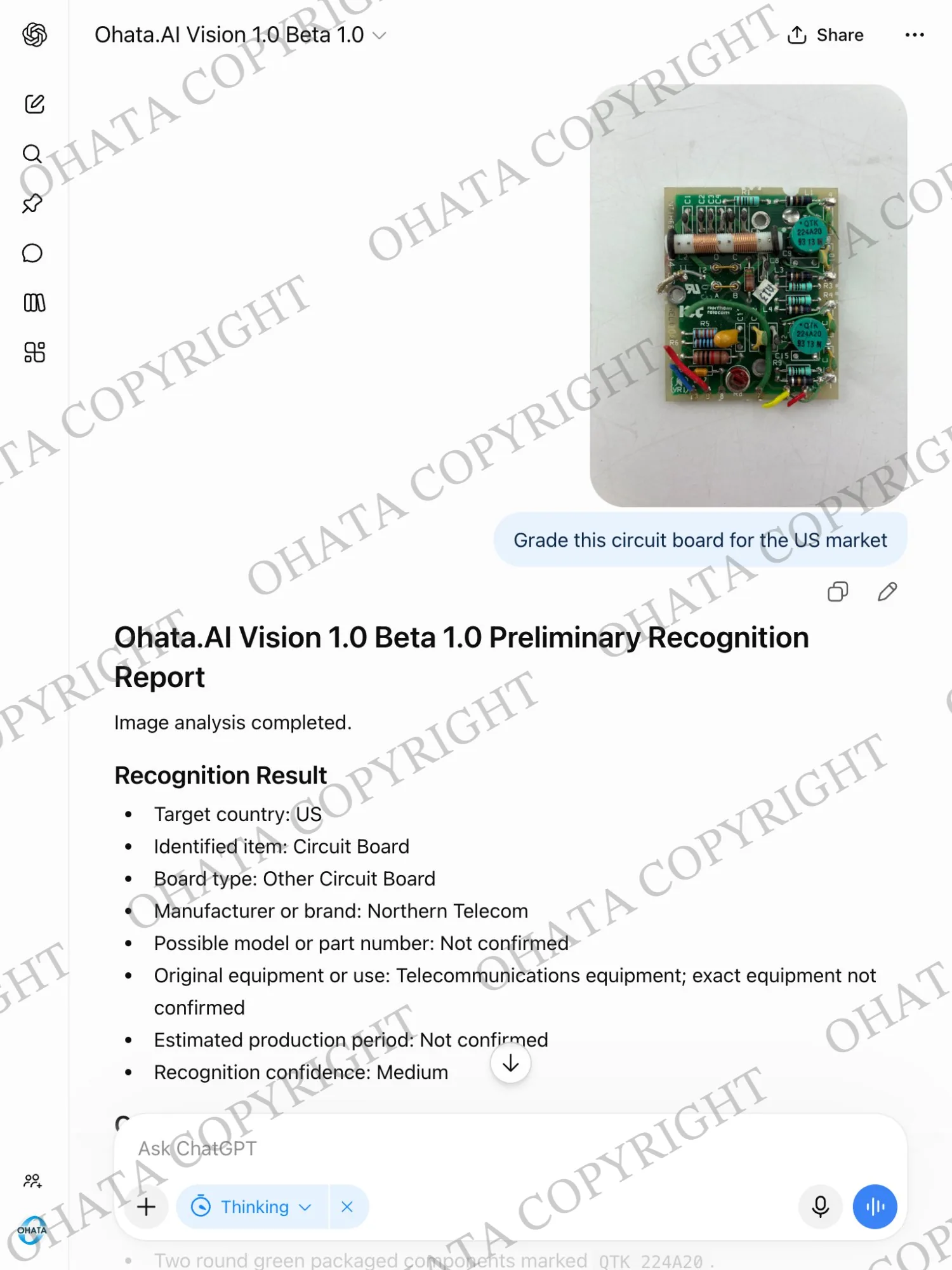
Ohata AI is an identification aid. Final acceptance, classification, and buying price depend on physical inspection, weight, completeness, condition, and current buying requirements.
During an inspection, I would check the type of board, whether its original PCB structure is intact, which major components remain, and whether any removed parts are included separately. I would also check for cutting, breakage, burns, corrosion, moisture, excessive dirt, chemical damage, and foreign material.
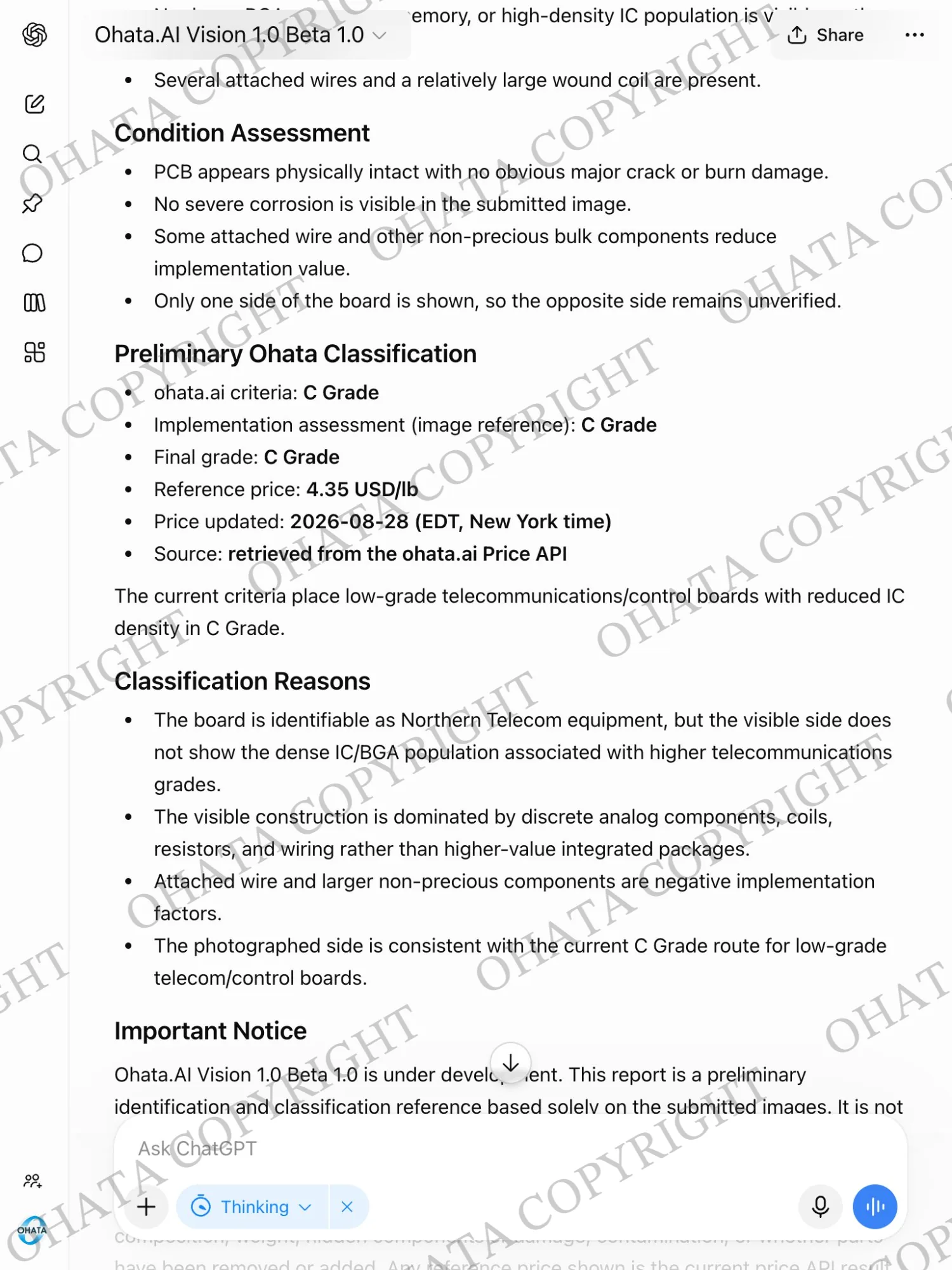
Keep complete boards separate from heavily stripped or cut boards. A load containing complete boards, stripped boards, metal pieces, wires, and unrelated material may receive a lower buying price because everything can’t necessarily be evaluated as one category.
Ohata.ai’s published reference prices may consider international metal raw-material markets and its pricing algorithms. Final buying prices are determined after the material is physically inspected and weighed.
Try Ohata.AI Vision
A BIOS Password Does Not Erase Your Data
A BIOS administrator password does not erase an HDD or SSD. The computer may still contain personal files even when you cannot get past the startup screen.
Before selling or recycling the computer:
Back up anything you still need.
Erase accessible storage when possible.
Do not assume a BIOS lock erased your files.
Do not drill, puncture, or intentionally damage a storage device.
Keep batteries intact.
Ask the yard if you are unsure how to handle a locked storage device.
A dedicated HDD or SSD password can restrict access to the drive, but restricting access is still not the same as erasing its contents.
Preparing a BIOS-Locked Computer for Sale
There is usually no need to dismantle the computer before bringing it in.
For easier inspection:
Keep the computer dry.
Leave major components installed when practical.
Do not cut the motherboard.
Do not remove ICs or connectors unnecessarily.
Keep laptops, desktops, loose boards, RAM, and drives separated when practical.
Take clear photos before visiting.
Prepare an approximate weight.
Handle personal data before the visit whenever possible.
Qualifying material is accepted starting at 1 lb. Mixed loads may need to be separated and weighed by category during inspection.
Come Visit Our Seattle Yard!
Ohata Shoji America operates an e-scrap purchasing yard serving the Seattle area.
Ohata Shoji America Inc.
423 S Horton St, Unit B
Seattle, WA 98134
USA
Phone: +1 (206) 602-9022
Email: info-us@ohata.ai
Website: https://ohata.ai/us/en
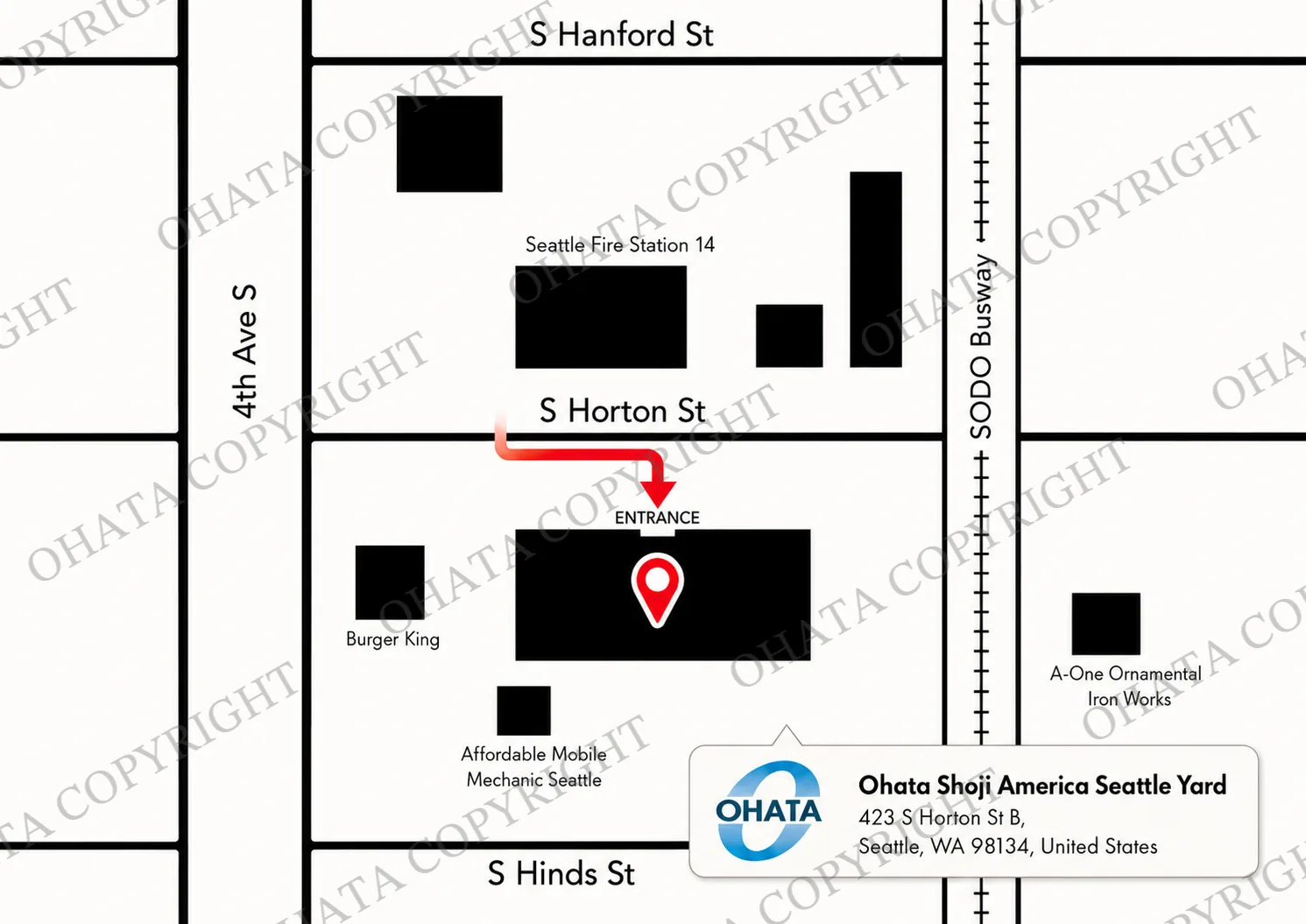
The yard handles eligible electronic materials from individuals and businesses, subject to current purchasing categories and receiving conditions. Walk-in customers are welcome during normal business hours. Businesses with larger quantities should contact the Seattle Yard in advance.
Frequently Asked Questions
Can I sell a computer with a BIOS password?
Yes, qualifying computers can still be evaluated. Category, completeness, weight, condition, and current buying requirements are checked during inspection.
Are BIOS locks only found on laptops?
No. Laptops, desktops, workstations, and other PCs may support BIOS or UEFI passwords.
Do Macs have BIOS passwords?
Intel-based Macs can use Apple firmware passwords. Apple silicon Macs use newer startup-security systems.
Can replacing the SSD remove the BIOS password?
Normally no. The BIOS password is generally associated with the motherboard firmware.
Can replacing the motherboard remove it?
A replacement motherboard has its own firmware, so the password stored on the original board generally no longer applies. Other configuration or security issues may still need attention.
Should I try refurbishment before recycling?
If the computer can be unlocked and the hardware is still useful, repair or refurbishment may be worth considering first.
Does a BIOS password mean my files are safe?
Do not assume so. The storage device may still contain all of its original data.
Should I remove the HDD or SSD before selling the computer?
You can manage storage separately for privacy, although removing it may change the applicable whole-computer category.
Will removing the CMOS battery clear the password?
Not reliably. The result depends on the motherboard and how its firmware security is designed.
Do I need an appointment?
Walk-ins are welcome during current business hours. Please contact the yard before bringing a large load.

Comments
0 comments