

Hello everyone!
I’m Nicole Hana Sekino, AI Data Analyst at Ohata Shoji America Seattle Yard.
Today is Friday, September 18, 2026. Seattle is expecting sunshine with temperatures in the low 70s.
Fourth Emerald Games in West Seattle is hosting its weekly Super Smash Saturday tomorrow evening, with more tournaments scheduled throughout the next several weeks. Players can enter a double-elimination bracket or play casual matches between rounds.
I love local tournaments, especially when there are prizes. You know what they say about being a big fish in a small pond. I may not be nationally good at Smash, but I do enjoy seeking out my puddles.
Not to say this tournament is necessarily one of them, but hey, go splash around!
Today I wanted to break down what PC specs like CPU, GPU, RAM, FPS, temperature, and ping actually mean, what they affect while you play, and how to tell whether it may really be time for an upgrade.
The PC Specs That Matter Most for Gaming
When a game lists minimum and recommended system requirements, it is giving you a general idea of the hardware needed to run it.
Minimum requirements usually represent the lower end of supported hardware. Recommended requirements generally aim for a better experience, although your actual FPS, resolution, and graphics settings can still vary.
Specification
What it does
What you may notice while gaming
CPU
Processes game logic, physics, input, and instructions
Low FPS, uneven performance, simulation slowdowns
GPU
Renders graphics and frames
FPS, resolution, textures, shadows, ray tracing
RAM
Temporarily holds active program data
Stutter or slowdowns if you run short
VRAM
Graphics memory available to the GPU
Texture quality and high-resolution graphics
SSD/HDD
Stores games and files
Loading and asset-streaming speed
Cooling
Removes heat from hardware
Excess heat can reduce performance
Internet
Connects your PC to online services
Ping, downloads, packet loss, online lag
Monitor refresh rate
Controls how often your display refreshes
How many frames the monitor can visibly display
The important thing is that there is no single “gaming speed” specification. Different parts affect different aspects of the experience.
FPS, CPU and GPU Performance
FPS means frames per second. It tells you how many individual frames your computer is rendering each second.
The GPU, or Graphics Processing Unit, handles much of the visual work. Higher resolutions, detailed textures, shadows, lighting effects, and ray tracing can increase the workload placed on it.
The CPU, or Central Processing Unit, handles instructions such as game logic, physics, input, and many background calculations.
If one component cannot keep up with the other, you may hear the word bottleneck. It simply means one part of the system is limiting overall performance in that particular workload.
That is why replacing the GPU does not automatically fix every FPS problem, and replacing the CPU does not automatically make every game faster.
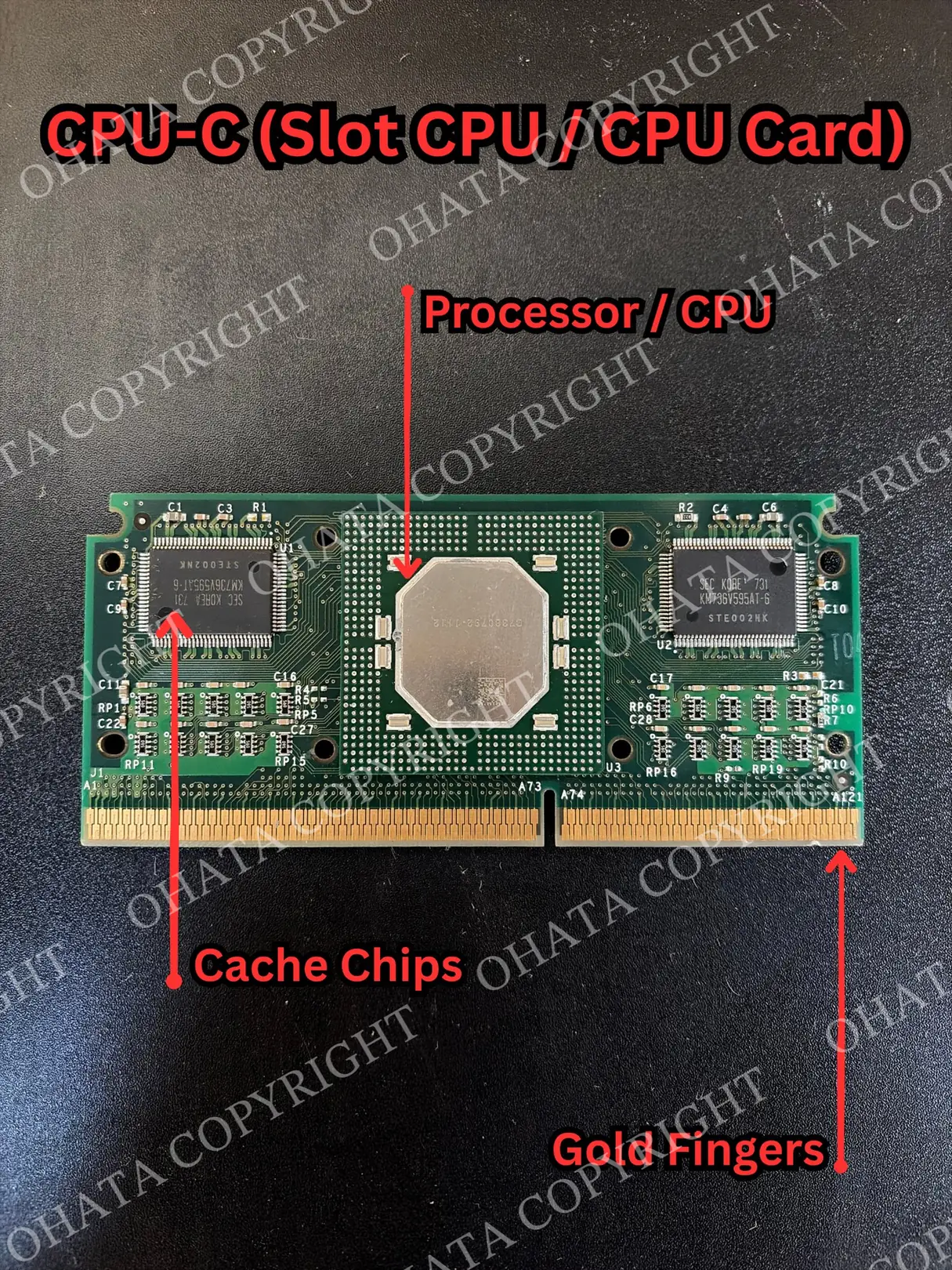
When an older processor eventually leaves service, its former gaming performance is no longer what determines its recycling category. Retired and broken CPU scrap is evaluated according to its physical construction, package type, contacts, completeness, and condition.
What Are Those Numbers in the Corner of a Game?
If you watch PC gaming videos, you may have seen a small group of numbers running along the top or side of the screen.
That is generally called a performance overlay or on-screen display. Programs such as MSI Afterburner can display live information while a game is running.
Stat
What it means
FPS
Frames rendered each second
Frametime
How long the computer takes to produce each frame
1% Low FPS
Shows shorter performance drops that an average can hide
GPU Usage
How much of the graphics processor is being used
GPU Temperature
How hot the GPU is running
VRAM Usage
How much graphics memory is in use
CPU Usage
How heavily the processor is working
CPU Temperature
How hot the CPU is running
RAM Usage
How much system memory is currently occupied
These numbers can help you understand what is happening instead of simply deciding that your computer feels slow.
For example, if your GPU is working near its limit while the CPU still has room available, the GPU may be the main limitation for that game and those settings.
Frametime is especially useful when a game looks choppy despite having a reasonable average FPS. Consistent frame delivery can make a game feel smoother than an impressive average number with frequent drops.
RAM, VRAM and Storage Affect Different Things
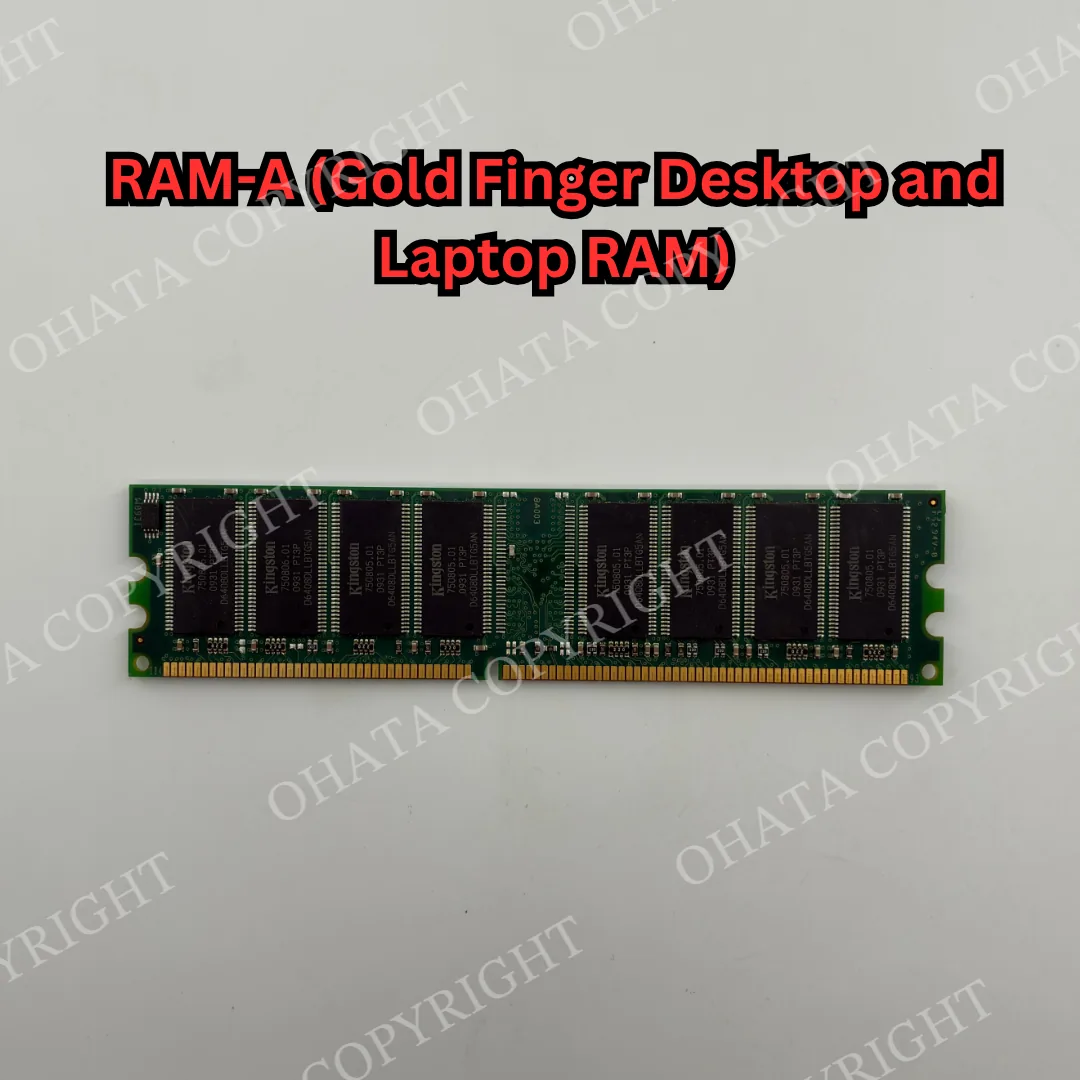
RAM, or Random Access Memory, is your computer’s temporary working space.
Your game, browser, operating system, voice chat, and other programs may all use RAM at the same time. If you run short, the computer has to depend more heavily on storage, which can contribute to stuttering or slower switching between programs.
More RAM does not automatically equal more FPS.
If you already have enough for the games and programs you use, adding more may make very little difference.
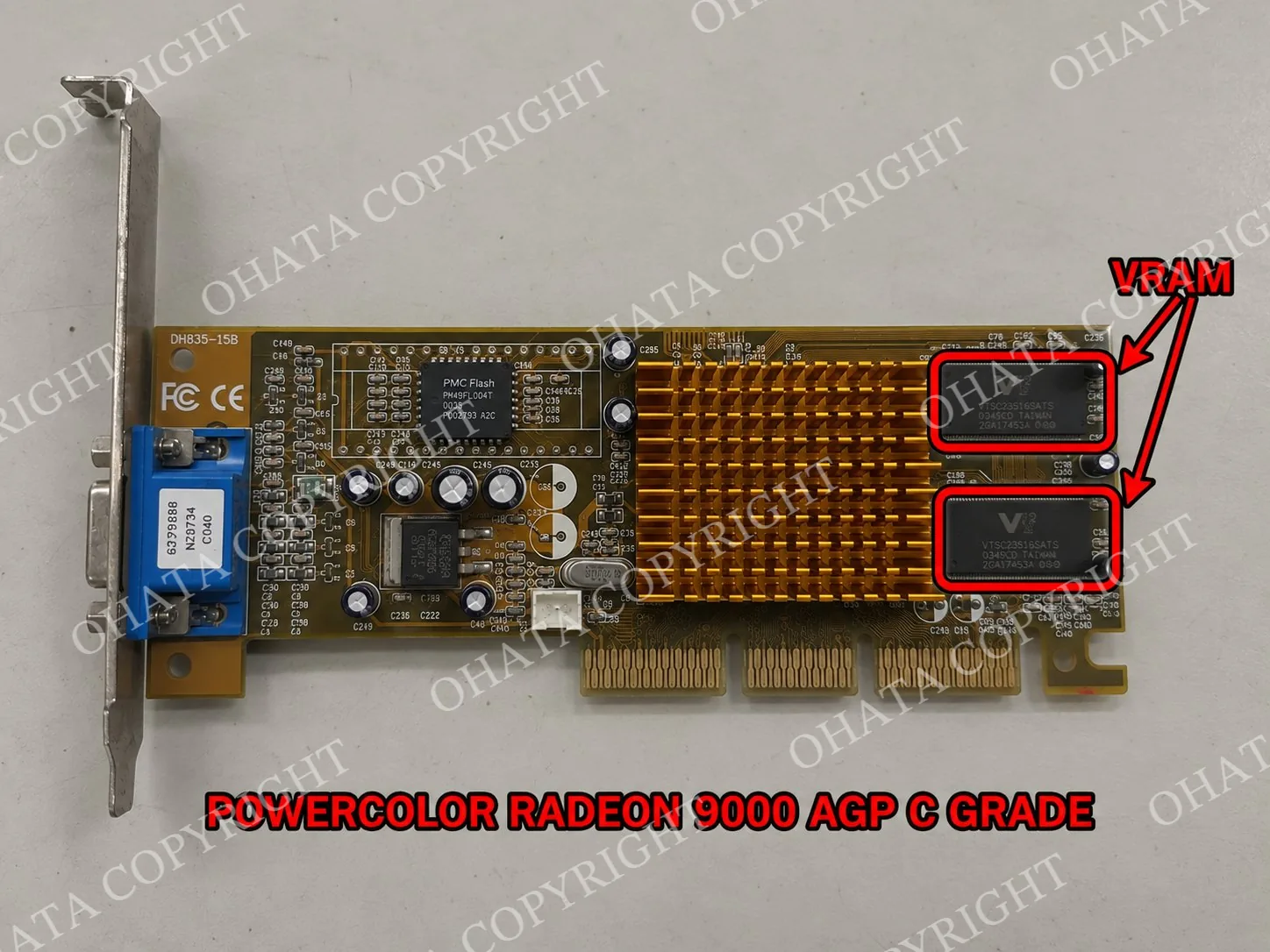
VRAM is different. It is memory used by the graphics processor for information such as textures and rendered image data. Higher resolutions and more detailed graphics can increase VRAM requirements.
Storage affects another part of the experience. An SSD can load information considerably faster than a traditional mechanical hard drive, which can improve loading times and asset streaming in games that depend heavily on storage speed.
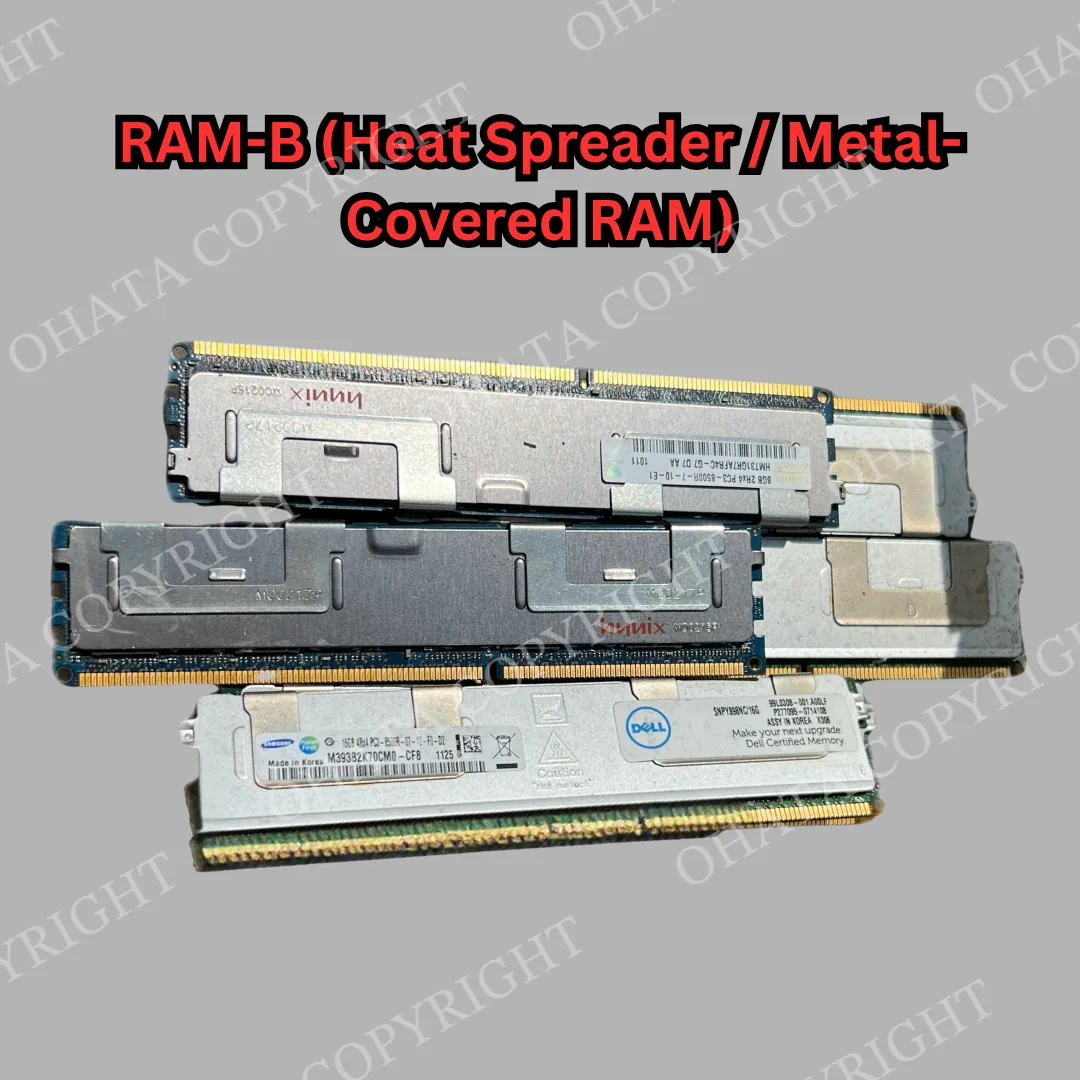
If you replace memory during an upgrade, complete RAM modules may still qualify as e-scrap. Once RAM becomes scrap, physical construction, IC population, contact finish, completeness, and condition matter more than whether the module was 8 GB, 16 GB, or 32 GB.
What Is a Graphics Driver?
A graphics driver is software that allows your operating system and games to communicate with your graphics hardware.
This is why names such as NVIDIA, AMD, and Intel appear so often around PC gaming.
They manufacture graphics hardware and provide software drivers for supported products. An NVIDIA GeForce graphics card uses an NVIDIA driver, for example, while AMD Radeon and Intel graphics hardware use their respective supported drivers.
Drivers can affect:
Game compatibility
Graphics features
Stability
Visual errors
Performance in certain games
Support for newer software
So if a game suddenly develops graphical problems or performs strangely, checking the graphics driver can be worthwhile before assuming the graphics card itself needs to be replaced.
One simple distinction helps:
The GPU is physical hardware. The graphics driver is software that tells the computer how to use that hardware.
NVIDIA, AMD, and Intel themselves are not performance specifications. The specific model, such as a particular GeForce, Radeon, or Intel Arc GPU, is what matters when comparing system requirements.
How Hot Should a Gaming PC Run?
Gaming naturally generates heat, so your CPU and GPU will normally run warmer during a game than when the computer is sitting idle.
A gaming PC uses several components to move that heat away from sensitive hardware. Heatsinks are the finned metal blocks commonly attached to CPUs, GPUs, and some motherboard components. Their large surface area helps transfer heat into the surrounding air.
Many cooling systems also use copper heat pipes. These are sealed tubes that move heat from a hot component toward the heatsink fins, where it can be released more efficiently. Copper is commonly used because it conducts heat very well.
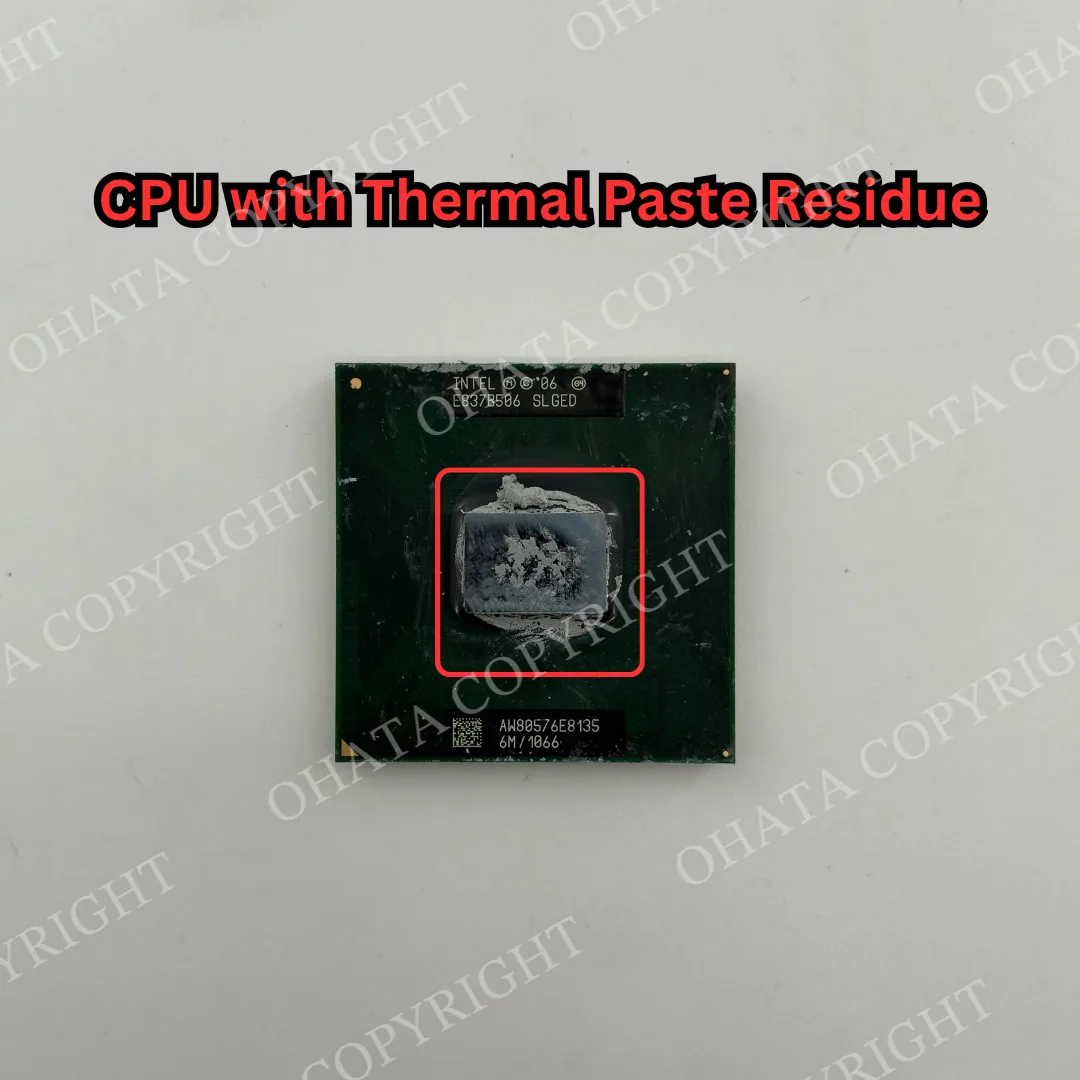
Between a CPU or GPU and its cooler, you may also find thermal paste. The surfaces may look perfectly flat, but microscopic gaps can remain between them. Thermal paste fills those small gaps and improves heat transfer into the cooler.
Fans then move air across the heatsink and through the computer case, carrying heat away from the components.
If a CPU or GPU becomes too hot, modern hardware can reduce its operating speed to stay within its designed limits. This is commonly called thermal throttling, and it can reduce gaming performance.
If a computer performs normally when a game first starts but becomes slower after extended use, temperature is one factor worth checking. Dust buildup, restricted airflow, a failing fan, cooler installation, and the condition of the thermal material can all affect cooling.
Learn more on YouTube: Cooling Components in Electronics: What They Do, What They’re Made Of, and What Has Value
Common Gaming Jargon and What It Usually Means
Gamers often use the word “lag” for almost any performance problem, but several very different things can be happening.
Term
What you may see
Area to investigate
Low FPS
Consistently unsmooth gameplay
CPU, GPU, settings
FPS drop
Frame rate suddenly falls
Hardware load, heat, background tasks
Stutter
Short pauses or uneven movement
CPU, RAM, storage, shaders, software
Lag
Delayed response
Often network related
High ping
Noticeable online delay
Internet connection or game server
Rubberbanding
Character moves and suddenly snaps backward
Network latency or packet loss
Screen tearing
Parts of different frames appear together
Frame rate and monitor synchronization
Throttling
Hardware slows itself under certain limits
Temperature or power
Bottleneck
One component limits another
CPU, GPU, or another system component
Crash
Game freezes or closes
Software, drivers, instability, memory, hardware
Finding the actual problem first can save you from replacing perfectly useful hardware.
Before Recycling, See If Your Old Hardware Can Be Reused
An old component does not automatically become scrap the moment you upgrade. If a CPU, GPU, RAM module, or complete computer still works and has a reasonable secondhand market, resale, refurbishment, reuse, or passing it into another computer may be worth considering first.
Keeping functional hardware in use for longer is one part of the circular economy.
Eventually, however, some electronics become damaged, incompatible, obsolete for their intended use, or uneconomical to refurbish. In that case we buy qualifying e-scrap from a minimum of 1 lb!
Gaming PC Parts We Buy
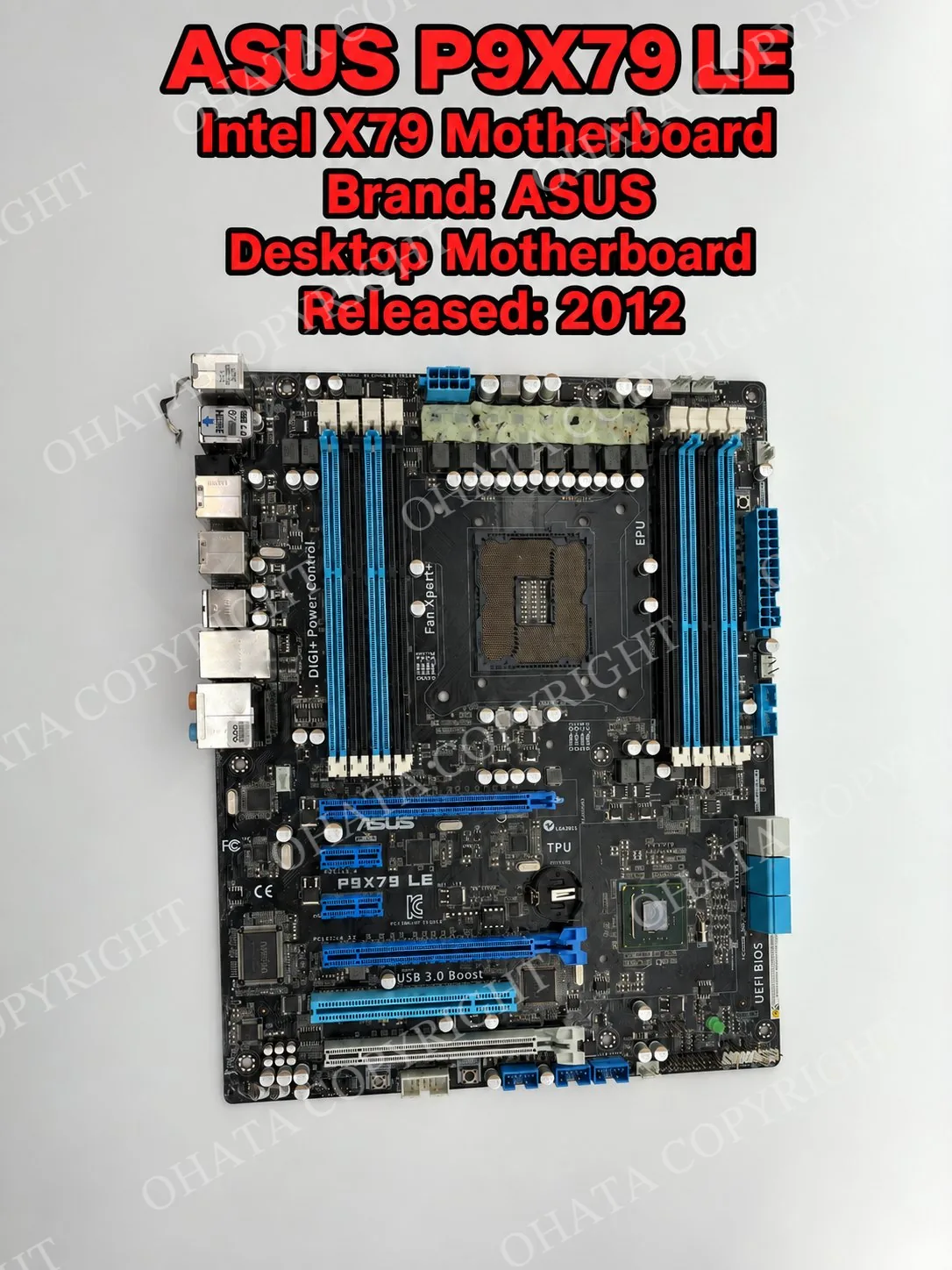
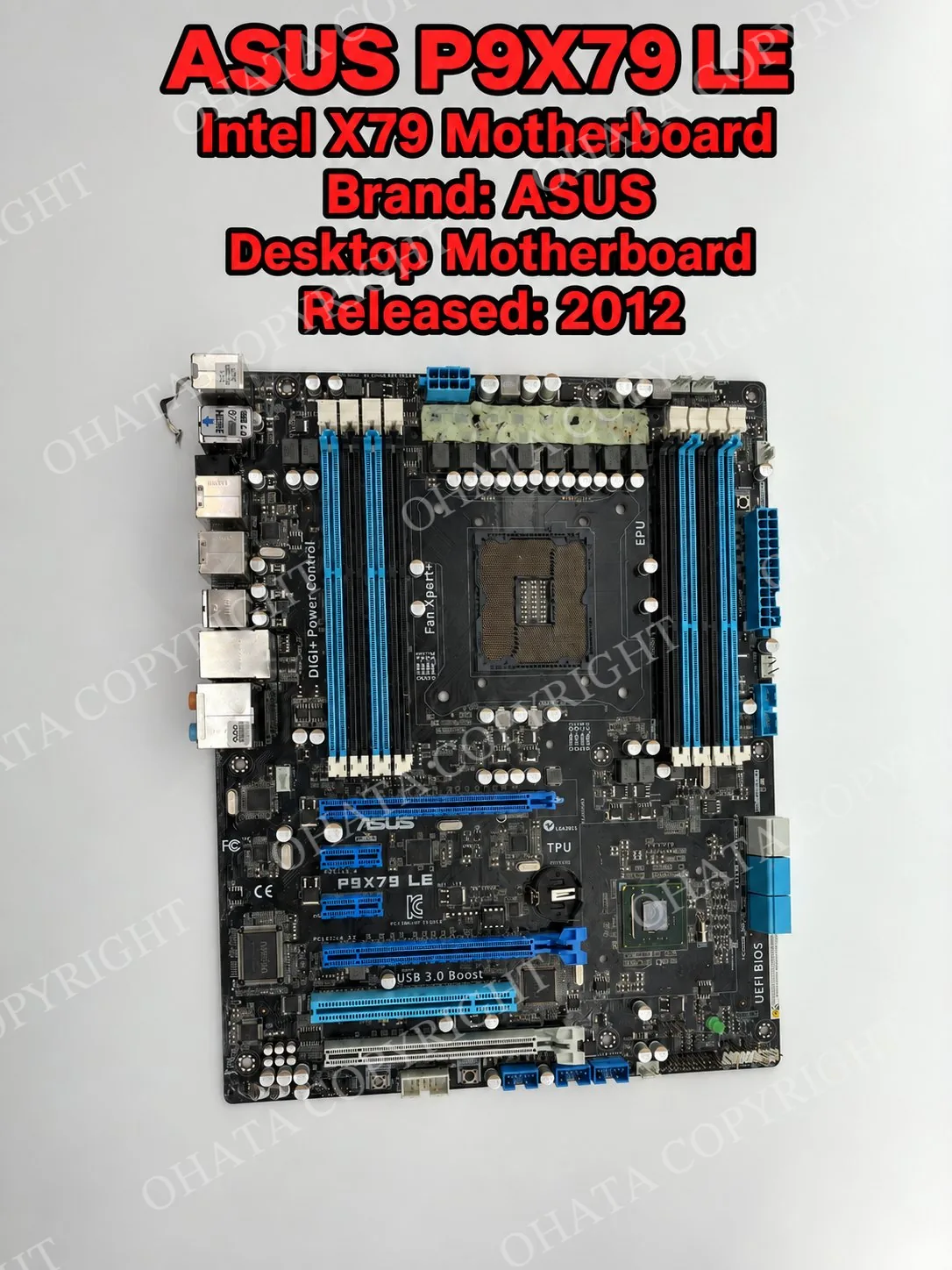
At Ohata Shoji America Seattle Yard, we purchase qualifying computer e-scrap from individuals and businesses. If you upgrade or retire a gaming PC, several of the components inside may qualify for purchase as e-scrap. Some relevant buying categories include:
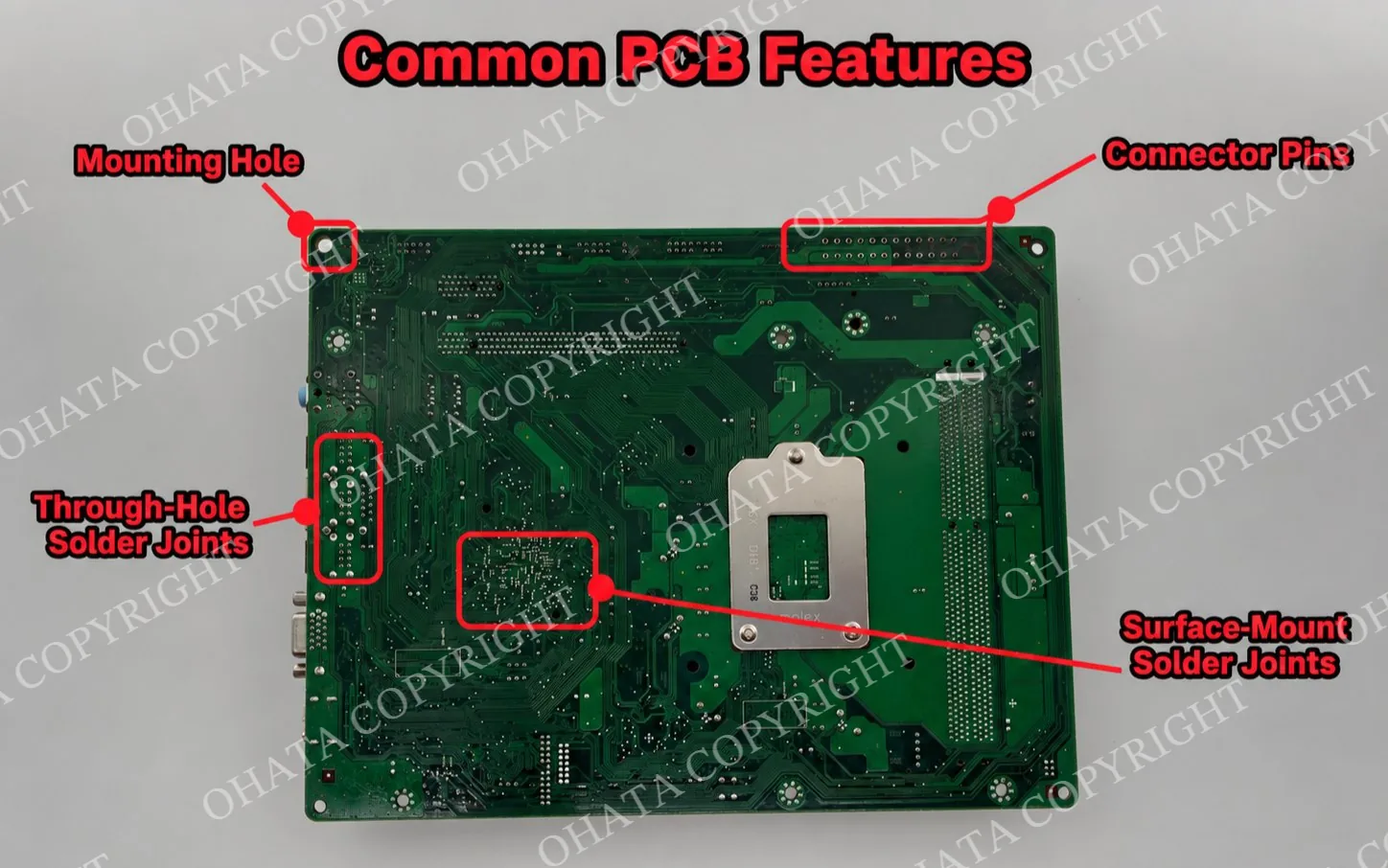
The exact buying category depends on the part’s construction, completeness, condition, and current buying requirements. A graphics card, for example, is evaluated as a circuit board rather than by how powerful it once was for gaming.
If you’re unsure about a part, give us a call or check our Seattle Yard access information before bringing it in.
Preparing Computer Parts After an Upgrade
If an upgrade leaves you with old components, there is usually no reason to cut the boards or start removing soldered chips and connectors.
Keep CPUs, RAM, motherboards, and other clearly different items separated when practical. Keep the material dry and leave original components attached.
If a computer contains an HDD or SSD, back up any files you want to keep and erase your personal data before selling or recycling it.
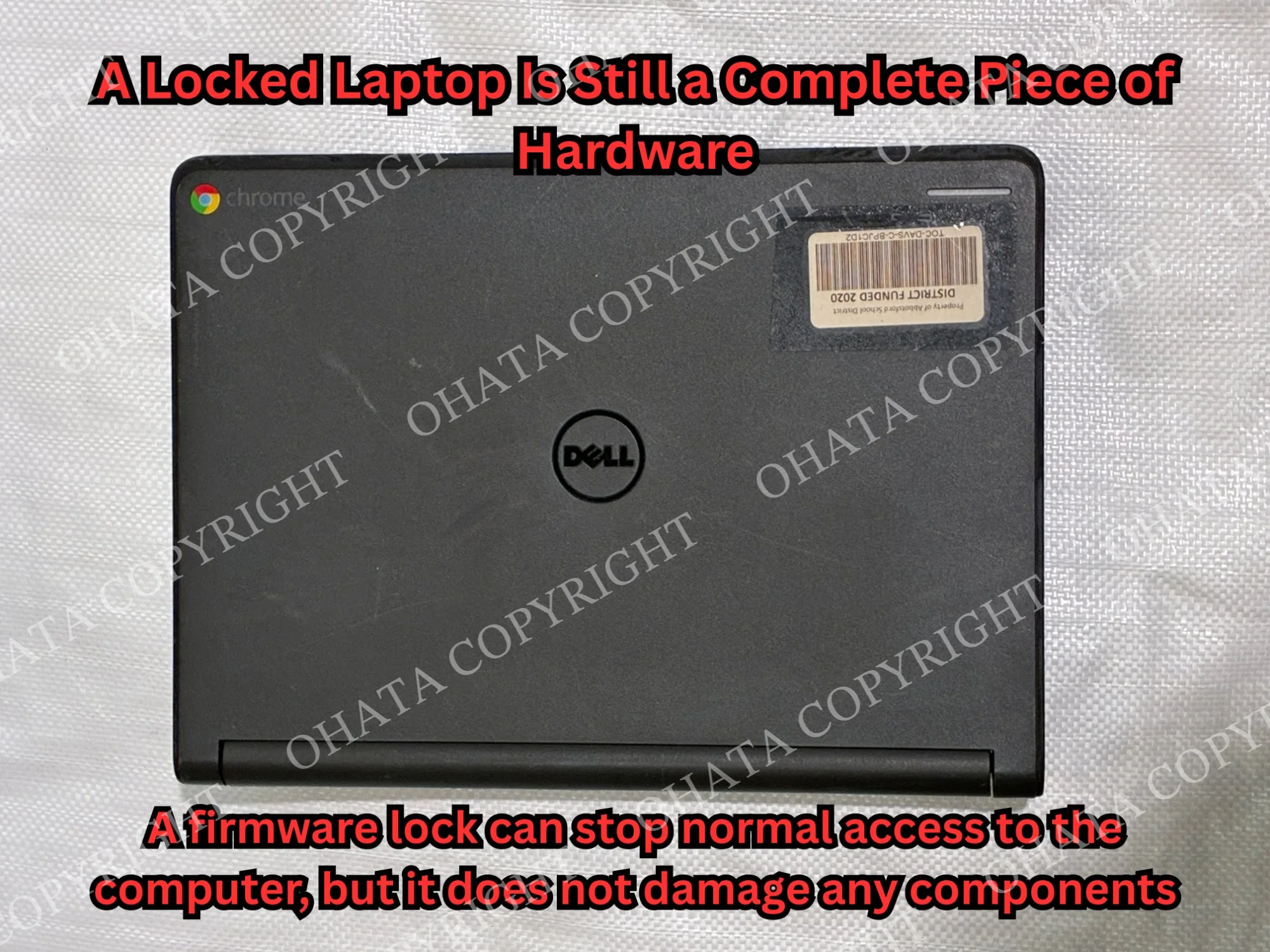
You can also have a complete computer evaluated before dismantling it. Ohata Shoji America purchases qualifying old and broken computers in the Seattle area, depending on the equipment, completeness, condition, and current buying requirements.
Qualifying e-scrap generally starts at 1 lb, and current categories and reference prices are available on the Seattle buying price page. Final classification, acceptance, and purchasing value are confirmed after inspection under current buying requirements.
Come Visit Our Seattle Yard!
Ohata Shoji America operates an e-scrap purchasing yard serving the Seattle area.
Ohata Shoji America Inc.
423 S Horton St, Unit B
Seattle, WA 98134
USA
Phone: +1 (206) 602-9022
Email: info-us@ohata.ai
Website: https://ohata.ai/us/en

The yard handles eligible electronic materials from individuals and businesses, subject to current purchasing categories and receiving conditions. Walk-in customers are welcome during normal business hours. Businesses with larger quantities should contact the Seattle Yard in advance.
Frequently Asked Questions
Does higher FPS always mean I need a better GPU?
No. FPS can be limited by the GPU, CPU, graphics settings, temperature, software, or the game itself.
What are the numbers people display on screen while gaming?
They are usually a performance overlay showing information such as FPS, CPU and GPU usage, temperatures, RAM usage, VRAM usage, and frametime.
Can adding more RAM improve gaming performance?
Yes, if insufficient RAM is currently causing a limitation. If you already have enough memory for your workload, adding more may provide little noticeable improvement.
Can overheating reduce game performance?
Yes. CPUs and GPUs can reduce their operating performance when temperature limits are reached.
Is rubberbanding caused by my graphics card?
Usually not. Rubberbanding in online games is more commonly associated with network latency, connection instability, or packet loss.
Do graphics drivers matter for gaming?
Yes. Graphics drivers help games and the operating system communicate with the GPU. Driver problems can affect compatibility, stability, graphics features, and performance.
Should I remove chips from a motherboard before selling it as e-scrap?
No. Leaving original soldered components and connectors attached helps preserve the board's original construction for evaluation.
Can broken CPUs or RAM still qualify?
Some damaged or non-working CPUs and RAM can still be evaluated. Physical construction, completeness, condition, and current buying requirements affect classification.
Should I sell working PC parts instead of recycling them?
If a component is functional and still has a useful secondhand market, resale or refurbishment can be worth considering before recycling.
Do I need an appointment to bring old PC parts to the Seattle Yard?
Not for a normal walk-in load during current business hours. Please contact the yard beforehand for large or commercial deliveries.

Comments
0 comments